I n v e n t E R P
Orange abstract lines design

ZATCA VAT
and E-Invoicing Compliance in Saudi Arabia

Invent ERP is fully compliant with ZATCA regulations including Phase 1 and Phase 2 e-invoicing requirements. Automatically calculate VAT, generate QR-coded tax invoices, and keep your business audit-ready in the Kingdom of Saudi Arabia.

Invent ERP is an easy-to-use ERP software.

Step-by-Step Guide on how to implement ZATCA VAT in Invent ERP

Step 1

Company Onboarding

Follow these steps to configure your company in Invent ERP and prepare the system for ZATCA-compliant e-invoicing

Step-by-Step Process

1 Quick Setup and Add Company Info
  • Open Quick Setup from the homepage to begin the company onboarding process
  • Enter your company details, including name, contact information, address, and company logo
  • Configure the base currency, bank details, and 15% VAT for sales and purchases
2 Advanced Company Setup
  • Navigate to Settings then go to Companies from the system settings menu
  • Select your company from the list of registered companies in the system
  • Open the advanced configuration options for further company settings
3 Configure ZATCA Settings
  • Set the Identification Type to Commercial Registration Number and enter the CR number
  • Select Simulation Mode for ZATCA API testing before moving to live production
  • Use Sandbox for development testing, Simulation for invoicing tests, and Production for live integration
4 Review and Complete Setup
  • Review all company details and address information to ensure accuracy
  • Confirm the postal code, district name, and other address fields are correctly entered
  • Submit the configuration to complete the company onboarding process
Important Notes & Tips
  • Always ensure your Company Name and CR Number match official government records
  • Double-check your VAT (15%) for both sales and purchases
  • Start with Simulation Mode before switching to Production Mode for live invoicing
  • Incorrect company information may cause ZATCA invoice rejections later

For more information and the complete step-by-step process, refer the full article.

View Detailed Article
Step 2

Journal Onboarding

The Journal On-boarding step connects your Customer Invoice Journal in Invent ERP with the Fatoora Portal, allowing invoices generated in the system to be submitted to ZATCA automatically.

Step-by-Step Process

1 Open Accounting Module
  • From All Apps, navigate to the Accounting module
  • Access the accounting dashboard to manage journals and invoices
  • Proceed to the configuration options to continue the setup process
2 Select Customer Invoice Journal
  • Navigate to Configuration → Accounting then Journals from the accounting menu
  • View the list of available journals configured in the system
  • Select the Customer Invoice Journal from the journal list
3 Obtain OTP from the Fatoora Portal
  • To complete onboarding, you must obtain an OTP (One-Time Password)
  • The OTP is generated through the Fatoora Portal provided by ZATCA
  • This OTP will be used to verify and activate the journal onboarding process
4 Generate the OTP in Fatoora Portal
  • In the Fatoora Simulation Portal, navigate to Onboard New Solution Unit / Device
  • Enter the number of OTP codes you want to generate in the portal
  • Copy the generated OTP code for use in Invent ERP
5 Enter the OTP in Invent ERP
  • Return to the Customer Invoice Journal in Invent ERP
  • Paste the copied OTP code into the OTP field
  • Click Confirm to complete the journal onboarding process
Important Notes & Tips
  • Use Simulation Mode first to test your integration before going live
  • OTP codes are time-sensitive, so generate and use them promptly
  • If onboarding fails, generate a new OTP and repeat the confirmation process
  • After switching to Production Mode, invoices created in Invent ERP will be submitted directly to ZATCA

For more information and the complete step-by-step process, refer the full article.

View Detailed Article
Step 3

ZATCA Customer Setup

Invent ERP allows you to easily add both individual customers and companies, while ensuring that all required information is included so your invoices can be successfully accepted by ZATCA.

Step-by-Step Process

1 Open CRM Module
  • From All Apps, navigate to the CRM module
  • Access the CRM dashboard to manage customer records
  • Proceed to the customers section to create a new contact
2 Create a New Customer
  • Open the Customers list from the CRM module
  • Click Add to create a new customer record
  • Enter the required information to begin creating the customer profile
3 Add an Individual Customer
  • Select Individual (Person) when creating the customer record
  • Ensure the customer’s full and accurate name is entered correctly
  • Accurate customer names are required to maintain ZATCA compliance
4 Add a Company Customer
  • Enter the official company name and Tax Identification Number (TIN)
  • Select Commercial Registration Number as the Identification Type and enter the CR number
  • Complete the full company address including country, region, postal code, streets, district, and building number
5 Save the Customer
  • Review the customer details to ensure all required information is correct
  • Confirm that identification and address details are properly entered
  • Click Create to save the customer record
Important Notes & Tips
  • Always enter the official company name exactly as registered to avoid invoice validation issues
  • A complete address is required for company customers to meet ZATCA requirements
  • Individual customers generally require fewer fields, but their name must always be accurate

For more information and the complete step-by-step process, refer the full article.

View Detailed Article
Step 4

ZATCA Invoice and Credit Note

Once your company setup, journal onboarding, and customer information are correctly configured, you can start issuing invoices that are automatically validated and submitted to ZATCA.

Step-by-Step Process

Invoices

1 Open New Invoice Form
  • From Quick Links, click New Invoice to create a new customer invoice
  • The system will open the invoice form
  • Proceed to enter the required invoice information
2 Add Invoice Details
  • Enter the customer invoice information
  • Add the invoice items and verify pricing and tax information
  • Click Create to save the invoice once all details are correct
3 Review and Confirm
  • Carefully review all invoice information before submission
  • Verify customer details and VAT info
  • Click Confirm to submit the invoice
4 Check the ZATCA Invoice Status
  • After confirmation, the system automatically submits the invoice to ZATCA
  • Within seconds, the system returns the invoice validation status
  • Invoices may appear as Accepted, Accepted with Warning, or Rejected
5 View Invoice Status in Invoice List
  • All invoices can be viewed in the Invoice List
  • The system displays the ZATCA validation status for each invoice
  • Rejected invoices are highlighted in red for correction and resubmission

Credit Notes

1 Open the Original Invoice
  • Navigate to the invoice that requires a refund
  • Open the invoice details page
  • Click Credit Note to start creating a refund document
2 Enter Credit Note Details
  • Fill in the required credit note information
  • Select the appropriate ZATCA predefined refund reason
  • Enter the refund date and click Create Refund
3 Review and Confirm
  • The credit note will initially appear in Draft mode
  • Carefully review the credit note details
  • Click Confirm if everything is correct
4 Check the Credit Note Status
  • After confirmation, the system submits the credit note for validation
  • Within seconds, the system returns the validation result
  • Review the returned status to ensure the credit note is accepted
Important Notes & Tips
  • Always review invoices and credit notes while they are in Draft mode before confirming them
  • If an invoice is rejected, check the error message and correct the issue before resubmitting
  • Use ZATCA predefined refund reasons when creating credit notes to maintain compliance
  • All confirmed invoices and credit notes are automatically submitted to ZATCA through Invent ERP

For more information and the complete step-by-step process, refer the full article.

View Detailed Article
Step 5

ZATCA POS Invoice and Refunds

Invent ERP Point of Sale (POS) system is fully integrated with ZATCA e-invoicing regulations in Saudi Arabia, allowing businesses to issue simplified invoices and refunds

Step-by-Step Process

POS Invoices

1 Open Point of Sale
  • From All Apps, navigate to the Point of Sale module
  • Access the POS interface to manage sales transactions
  • Select the POS terminal you want to use
2 Enter POS Session
  • Select the POS assigned to your terminal
  • Enter the session to begin processing sales
  • The POS screen will display all products
3 Create New Order
  • Initiate a new order from the POS interface
  • Add required products or services to the order
  • Verify quantities and pricing
4 Select Customer
  • Choose the customer before completing the order
  • Ensure the correct customer record is selected
  • This ensures proper invoice generation and compliance
5 Complete Payment
  • Choose the payment method for the order
  • Click Pay to finalize the POS transaction
  • The system generates a simplified POS invoice
6 Verify Invoice Submission
  • Open the Invoice List in the system
  • Locate the invoice generated from the POS order
  • Confirm it has been automatically submitted to ZATCA

POS Refunds

1 Open POS Orders
  • From the POS interface, open the Orders menu
  • View the list of completed POS transactions
  • Locate the order that requires a refund
2 Select Order to Refund
  • Open the order you want to refund
  • Enter the quantity of items to be refunded
  • Click Refund to start the refund process
3 Select Refund Reason
  • Choose the right ZATCA refund reason
  • Ensure the reason matches the refund scenario
  • Click OK to proceed with the refund
4 Confirm the Refund
  • Review the refund information and verify item details
  • Select the payment method to initiate refund
  • Confirm the refund to complete transaction
5 Verify Credit Note
  • Open the Invoice List in the system
  • Locate the related refund transaction
  • Confirm the credit note was submitted to ZATCA
Important Notes & Tips
  • Always select the customer before completing a POS order to ensure proper invoicing records
  • Refunds must include a ZATCA predefined refund reason for compliance
  • All POS invoices and refunds are automatically submitted to ZATCA through Invent ERP
  • POS transactions generate simplified invoices, while the system automatically creates the standard invoice in the backend

For more information and the complete step-by-step process, refer the full article.

View Detailed Article

Everything you need to know about ZATCA VAT in Saudi Arabia

Introduction

Following the approval of the Unified VAT Agreement and its implementation in January 2018, the Kingdom of Saudi Arabia introduced Value Added Tax (VAT) as part of its economic diversification strategy.

The VAT rate was later revised to 15% on July 1, 2020. Businesses operating in Saudi Arabia must comply with VAT regulations issued by the Zakat, Tax and Customs Authority, with proper invoicing, reporting, and tax return filing.

Invent ERP ZATCA VAT Ready in saudi
How VAT Works in KSA ?

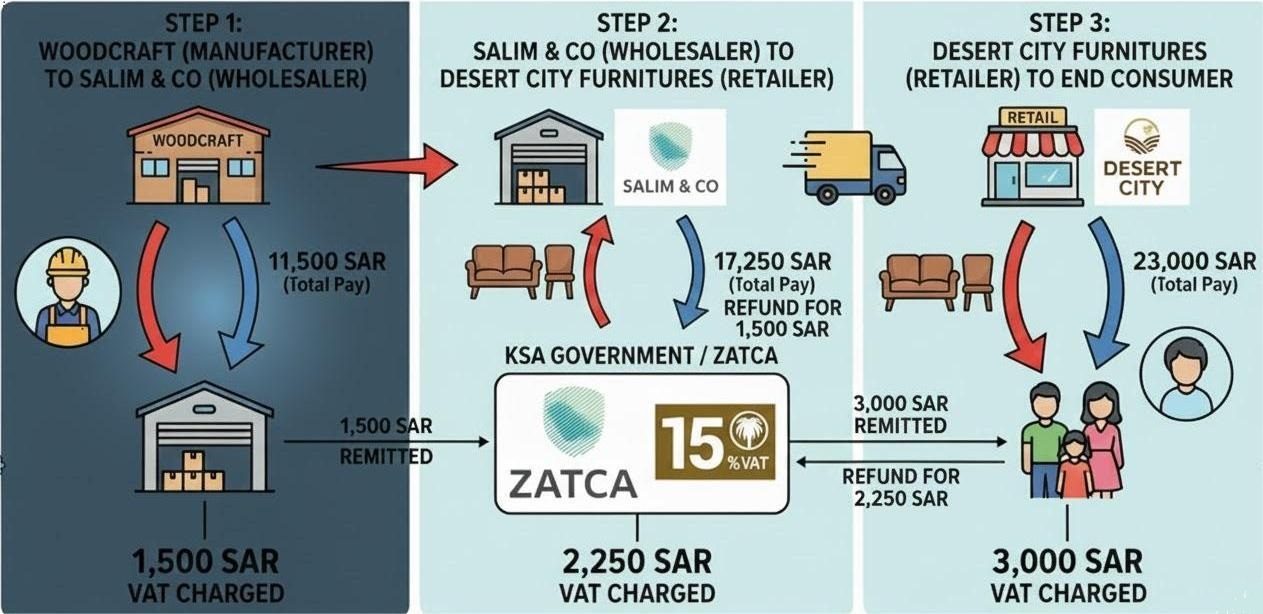
Value Added Tax is an indirect tax applied at each stage of the supply chain. Businesses collect VAT on sales and deduct VAT paid on purchases, remitting the net balance to ZATCA. The following example illustrates this flow across a typical supply chain.

VAT Example Supply Chain
Invent ERP Logo

Manufacturer Sale

Woodcraft, a furniture manufacturer, sells furniture to wholesaler Salim & Co for SAR 10,000 and charges 15% VAT (SAR 1,500), making the total invoice SAR 11,500

Invent ERP Logo

Wholesaler Resale

Salim & Co sells the furniture to retailer Desert City Furnitures for SAR 15,000 and charges 15% VAT (SAR 2,250), while claiming input VAT credit of SAR 1,500 paid to the manufacturer

Invent ERP Logo

Retailer Sale

Desert City Furnitures sells the product to the final consumer for SAR 20,000 and charges 15% VAT (SAR 3,000), while claiming input VAT credit from the previous purchase

Invent ERP Logo

Final Consumer Payment

The end customer pays a total of SAR 23,000 including VAT, while businesses in the supply chain remit the net VAT collected to ZATCA

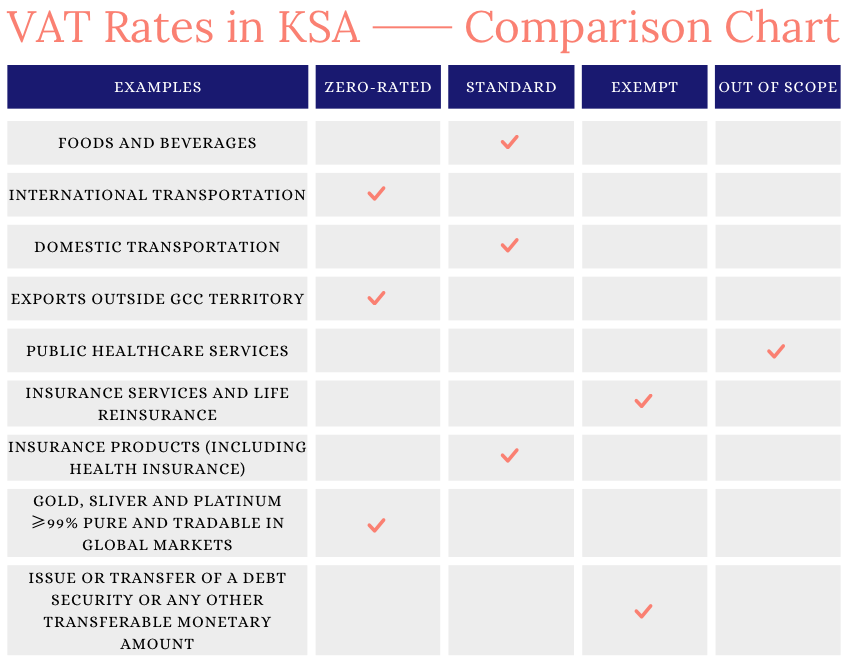
VAT Rates in Saudi Arabia
Standard Rated Supplies (15%)

Most goods and services supplied within Saudi Arabia are subject to the standard VAT rate of 15% unless specifically classified as zero-rated or exempt.

Zero-Rated Supplies (0%)

Certain supplies are taxed at 0% VAT while businesses can still recover input VAT on related purchases.

Exempt Supplies

Some goods and services are exempt from VAT, meaning no VAT is charged and businesses generally cannot claim input VAT on related expenses.

VAT rates chart Saudi Arabia standard zero exempt
Taxable and Non-Taxable Supplies

Taxable Supply

Taxable supplies refer to goods and services on which VAT is applied according to ZATCA regulations. These supplies may be taxed at either the standard rate or the zero rate depending on the nature of the transaction.

Standard-Rated Supply

Standard-rated supplies are goods and services that are subject to the standard VAT rate of 15% in Saudi Arabia.

Zero-Rated Supply

Zero-rated supplies are taxable goods and services that are charged VAT at 0%. Although VAT is not collected on sales, businesses can still claim input VAT on related purchases and expenses.

Exempt Supply

Exempt supplies are goods or services that are not subject to VAT. Businesses dealing only in exempt supplies cannot charge VAT on their sales and are generally not eligible to claim input VAT on purchases.

Out-of-Scope Supply

Out-of-scope supplies refer to transactions that fall outside the VAT system and therefore are not subject to VAT. These usually occur when a supply is made outside Saudi Arabia or when the transaction is not considered an economic activity.

VAT on Imports

Goods imported into Saudi Arabia are generally subject to VAT at the applicable rate unless specifically exempt. Import VAT is usually collected by Saudi Customs.

VAT Registration

Businesses making taxable supplies in Saudi Arabia must assess whether they meet ZATCA VAT registration threshold. Registered businesses can legally charge VAT and report it to the tax authority.

Invent ERP Logo

Mandatory Registration

Businesses whose annual taxable supplies exceed SAR 375,000 must register for VAT with ZATCA. The threshold is determined based on taxable supplies made during the previous 12 months or expected in the upcoming 12 months.

Invent ERP Logo

Voluntary Registration

Businesses with annual taxable supplies above SAR 187,500 but below SAR 375,000 may choose voluntary VAT registration, allowing them to recover input VAT on purchases and operating expenses.

Invent ERP Logo

Non-Resident Registration

Non-resident businesses supplying goods or services in Saudi Arabia must register for VAT regardless of turnover and appoint a local tax representative responsible for VAT compliance and reporting.

Invent ERP Logo

Group Registration

Two or more legal entities under common control in Saudi Arabia may register as a VAT group. To be eligible, all members must be legal residents of Saudi Arabia, actively conduct economic activity, and meet specific statutory criteria set by ZATCA.

Invent ERP Logo

Database Verification

ZATCA provides a taxpayer lookup service that allows businesses to verify the VAT registration status of any entity using its VAT number, Commercial Registration number, or VAT certificate details.

Invent ERP Logo

Deregistration

Businesses may apply for VAT deregistration if they cease taxable activities or if their taxable turnover falls below the voluntary registration threshold through the ZATCA online portal.

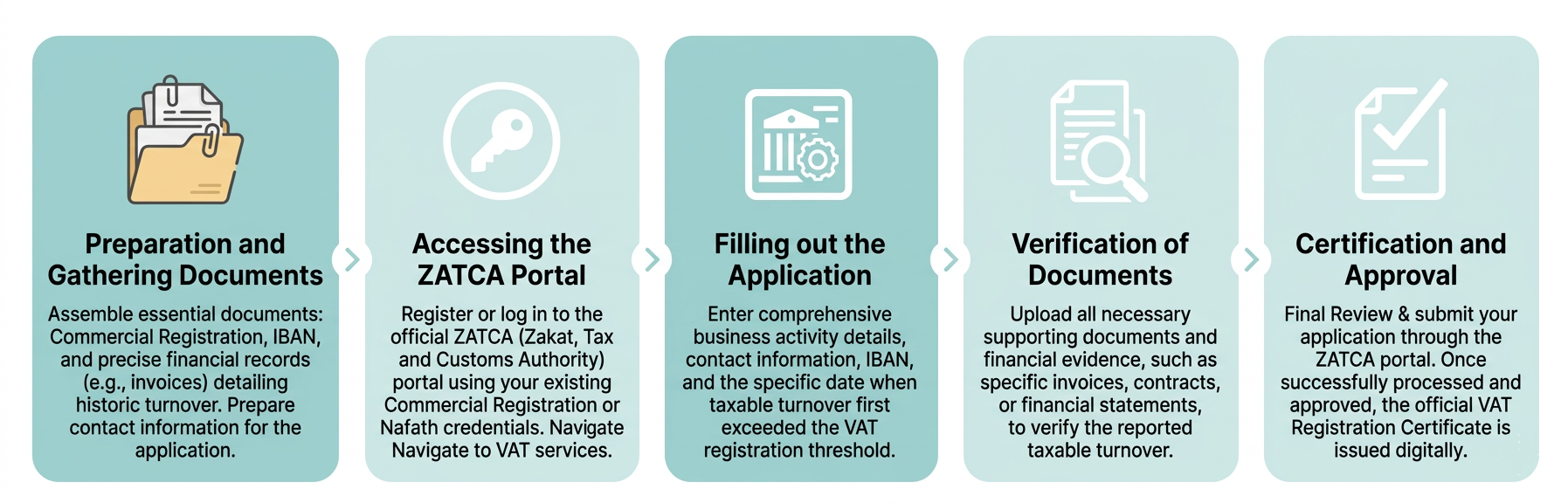
VAT Registration Process

ZATCA VAT registration process steps Saudi Arabia
VAT Returns

A VAT return is a report submitted by businesses to ZATCA showing the VAT collected on sales (output VAT) and the VAT paid on purchases (input VAT) during a specific tax period. The return is filed electronically through the ZATCA portal and helps determine the amount payable or refundable for that period.

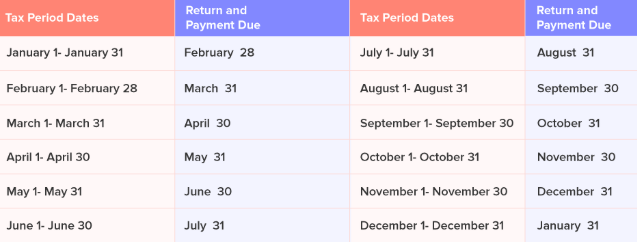
Quarterly Filing Period

Businesses with an annual taxable turnover of SAR 40 million or less typically file VAT returns quarterly. These periods cover January-March, April-June, July-September, and October-December. Both the return and payment must be submitted by the last day of the month following the end of the quarter.

Invent ERP ZATCA VAT qauterly filling in saudi
Monthly Filing Period

Businesses with an annual taxable turnover exceeding SAR 40 million are required to submit VAT returns monthly. Each return reports the VAT activity for a single calendar month and must be submitted, along with payment, by the last day of the following month.

Invent ERP ZATCA VAT monthly filling in saudi.
How are VAT Payments made?

VAT payments are made to ZATCA via SADAD payment system using an invoice number generated after submitting the VAT return. Payments can be made through online banking, ATMs, or the ZATCA portal using Mada or credit cards. To avoid late payment penalties, ensure payment is completed by the last day of the month following the tax period.

Correction of VAT Return

Any error is discovered after submission, it must be corrected. Minor errors resulting in a tax difference of less than SAR 5,000 can be adjusted in the next VAT return. Larger differences of SAR 5,000 or more must be reported immediately by submitting a VAT Return Amendment through the ZATCA portal.

VAT Penalties

ZATCA imposes penalties for non-compliance with VAT regulations, including late registration, incorrect filing, and failure to maintain proper tax records.

Topic Description of offences Penalties
Tax Return Submission Failure to submit the Tax Return 5% - 25% of the value of the Tax that would have had to be declared
Filing Filing incorrect tax return, amend a tax return or file any document resulting in a lower amount due 50% of the value of the difference between the calculated Tax and the Tax due
Registration Failure to apply for VAT registration SAR 10,000
False Submission Submission of false documents to evade the payment or reduce VAT due or unlawfully obtain refunds for tax At least the amount of the VAT due, up to 3 times the value of the goods and services subject of the evaded tax
Records Failure to keep Tax Invoices, books, records and accounting documents Maximum SAR 50,000

ZATCA has extended the Penalty Waiver Initiative until June 30, 2026. Penalties for late registration, filing, and payments may be waived for eligible taxpayers who settle their principal tax debt before the deadline. This waiver does not apply to tax evasion.

E-Invoicing (Fatoorah)

E-Invoicing (Fatoorah) is the mandatory process of issuing, exchanging, and storing tax invoices and related notes in a structured digital format through an integrated electronic system. In Saudi Arabia, the Zakat, Tax and Customs Authority (ZATCA) requires VAT-registered businesses to generate invoices, credit notes, and debit notes electronically to ensure standardized, secure, and transparent transaction records. This system helps ensure that transactions, including domestic sales and exports, follow a consistent digital format and cannot be altered once issued.

Types of E-Invoices

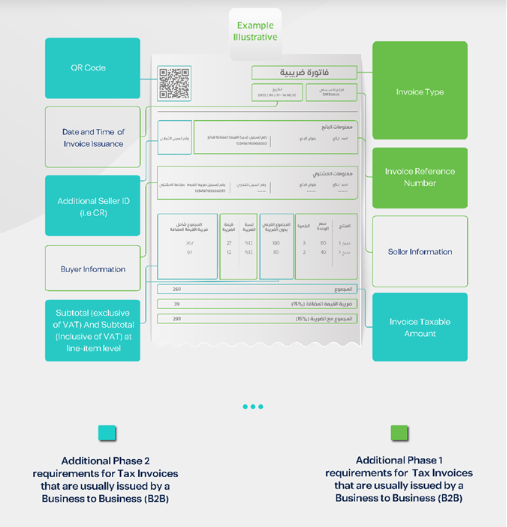
Tax Invoice (B2B)

The standard document issued between businesses. It must contain all mandatory ZATCA tax elements and be integrated with ZATCA systems for Phase 2 compliance.

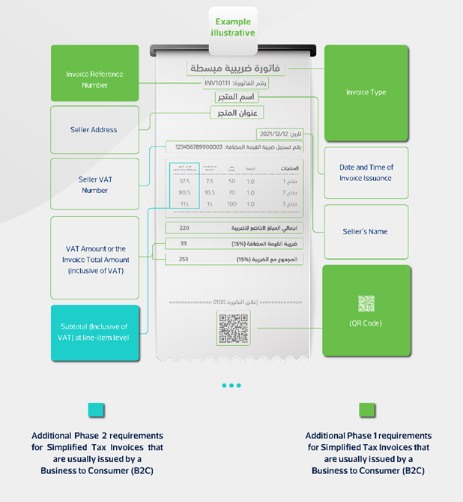
Simplified Tax Invoice (B2C)

The digital document issued by a business to a consumer. These invoices usually include a QR code that allows instant verification of the transaction details.

Credit Note (Returns & Adjustments)

Issued to reduce the value of a previously issued invoice. It is commonly used for product returns, correcting overstated amounts, or adjusting excess VAT collected.

Debit Note (Additional Charges)

Issued to increase the value of a previously issued invoice. This may occur when a customer was undercharged, additional goods were delivered, or insufficient VAT was applied.

Phase 1 - Generation Phase

Effective December 4, 2021, all VAT-registered businesses must generate and store tax invoices and electronic notes through a ZATCA-compliant e-invoicing system.

Invoices must be issued using electronic systems such as cloud platforms, POS systems, or installed invoicing software. Manual handwritten invoices are not permitted.

Mandatory invoice fields must be included such as VAT number, timestamp, VAT amount, and total transaction value.

Simplified invoices for B2C transactions must include a QR code to allow quick verification by customers.

Invoices are generated and stored electronically but do not need to be reported to ZATCA during this phase.

Phase 2 - Integration Phase

Effective January 1, 2023, businesses must integrate their invoicing systems with the ZATCA Fatoora platform to enable invoice validation and reporting.

E-invoices must follow approved formats such as XML or PDF/A-3 with embedded XML to ensure compliance and validation.

Systems must support secure API integration with ZATCA to allow invoice clearance and reporting.

Each invoice must include UUID, digital signatures, cryptographic stamps, and invoice hashing for security.

ZATCA implements this phase in waves and businesses are notified at least six months before integration.


Tax Invoice Examples
Invent ERP ZATCA VAT sample tax invoice in saudi

Tax Invoice Example

Invent ERP ZATCA VAT Sample simplified tax invoice in saudi

Simplified Tax Invoice Example

Reverse Charge Mechanism (RCM)

The Reverse Charge Mechanism (RCM) is a VAT rule where the responsibility for reporting and paying VAT shifts from the supplier to the buyer. Instead of the supplier charging VAT on the invoice, the buyer records both Output VAT and Input VAT in their VAT return for the same transaction.This mechanism ensures that VAT is properly accounted for even when the supplier is not registered for VAT in Saudi Arabia.

When Does Reverse Charge Apply?

Import of Services

When a VAT-registered business in Saudi Arabia receives taxable services from a non-resident supplier located outside the Kingdom.

Non-Resident Suppliers

When services are provided by suppliers who are not registered for VAT in KSA but deliver services to businesses within the Kingdom.

Intra-GCC Transactions

Certain cross-border transactions between GCC member states where the supplier does not charge VAT in the destination country.

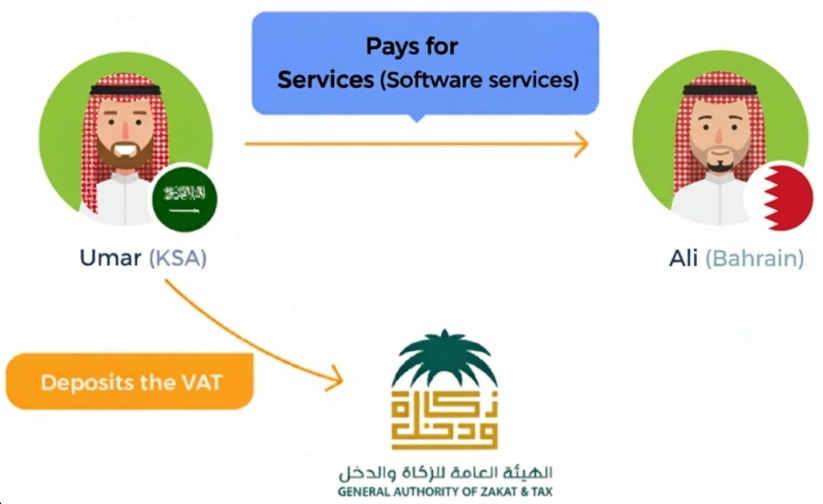
Example: Software Subscription

A VAT-registered electronics retailer in Saudi Arabia subscribes to a software service provided by a UK-based company.

Since the supplier is not registered for VAT in Saudi Arabia, VAT is not charged on the invoice.

Because the service is delivered electronically, it does not pass through Customs.

The Saudi business must calculate and report VAT on the transaction using the reverse charge mechanism in its VAT return.

reverse charge mechanism example Saudi VAT
Place of Supply

Place of Supply refers to the geographic location where a transaction is considered to occur for VAT purposes. Determining the place of supply helps businesses identify which country has the right to apply VAT and whether the transaction is domestic, export, or out-of-scope under Saudi VAT regulations.

Place of Supply for Goods

Domestic Supply

For domestic transactions within Saudi Arabia, the place of supply is Saudi Arabia and VAT applies according to the applicable rate.

Intra-GCC Supply

When goods are transported between GCC member states, the place of supply is generally the destination country where the goods are delivered.

Exports to Non-GCC Countries

When goods are exported outside the GCC, the place of supply remains Saudi Arabia but the transaction may qualify for zero-rated VAT treatment.

Imported Goods

When goods are imported into Saudi Arabia, VAT is usually collected at Customs and the place of supply is considered Saudi Arabia.

Place of Supply for Services

For services, the default rule is that the place of supply is the location where the supplier resides or operates. However, certain services may follow specific rules depending on where the service is performed or consumed.

Common Exceptions

Business-to-Business (B2B) Services Place of supply is the location of the customer.

Real Estate Services Place of supply is where the property is located.

Transportation Services Place of supply is where the transportation takes place.

Events, Cultural, or Educational Services Place of supply is where the event or service is performed.

Telecommunication and Electronic Services Place of supply is where the service is used.

Services provided by a non-resident supplier may have the place of supply determined based on where it is consumed.

Input VAT Deductions and Refunds

Under the KSA VAT system, businesses must account for both input VAT paid on purchases and output VAT collected on sales. Properly managing these amounts ensures accurate VAT reporting and determines whether a business must pay VAT to ZATCA or claim a refund.

Input vs Output VAT

Input VAT is the tax paid by a business on purchases of goods or services, while Output VAT is the tax collected on sales made to customers. The difference between the two determines the amount payable to ZATCA or refundable to the business.

Input VAT Deductions

Businesses registered for VAT may deduct input VAT paid on purchases that are directly related to their taxable business activities, including goods or services used to produce standard-rated or zero-rated supplies.

Capital Assets

Input VAT paid on capital assets used for business purposes may also be deducted. The eligibility depends on the nature of the asset and payment terms such as full payment or installment arrangements.

Ineligible Input VAT

Input VAT cannot be claimed for goods or services used for personal purposes or non-business activities. Certain expenses such as entertainment services or restricted motor vehicles may also be excluded.

VAT Refunds

If the total input VAT exceeds output VAT during a tax period, the business may be eligible for a refund. The refundable amount may be claimed from ZATCA or carried forward to offset future VAT liabilities.

Deduction Time Limits

Businesses must claim their input VAT within the allowed timeframe. Under ZATCA regulations, deductions can typically be claimed within five years from the date the tax was originally incurred.

VAT Records and Book of Accounts

Retention Period of VAT Records

Businesses must retain VAT-related records for the required period to ensure compliance and support audits by ZATCA.

Standard business VAT records must be properly maintained and kept for at least 6 years

Records related to immovable assets such as real estate must be retained for up to 15 years.

Location of VAT Records

VAT records must generally be maintained within Saudi Arabia and must remain accessible to ZATCA when requested.

Records may be stored physically or electronically in a secure format.

Records must remain readable, tamper-resistant, and available for audit purposes.

Records Required for Audit

Businesses must maintain proper documentation supporting VAT returns and financial records.

Tax invoices, simplified invoices, credit notes, debit notes, and other financial documents.

VAT calculations, VAT returns, and accounting records such as transaction logs.

VAT Account Tracking

A VAT account records the balance of tax payable or refundable between a business and ZATCA.

Tracks VAT collected on sales (Output VAT) durin business transactions.

Tracks VAT paid on purchases (Input VAT) and adjustments during filings.

References